
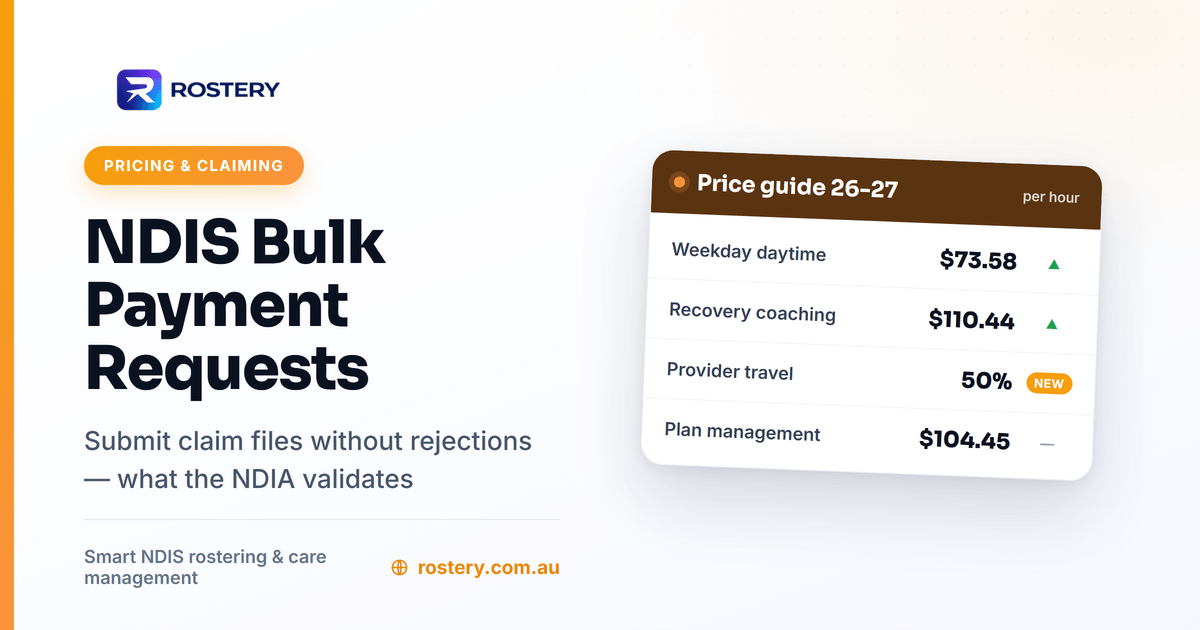
A shorter, practical take on our full guide, submitting an NDIS bulk payment request without rejections. General information only, not claiming advice.
If you're a sole trader or a small team claiming from the NDIA, the bulk payment request is the CSV file you upload in the myplace provider portal to get paid. It can hold up to 5,000 claims, but for most small providers it's a few dozen rows once a week or once a fortnight.
Ten minutes of checking before the upload saves a lot more time afterwards. Here's the check we'd suggest, in the order we'd do it.
Minute 1: is this participant yours to claim?
Look at how each participant's plan is managed. You only put NDIA-managed claims in your own file. Plan-managed invoices go to the plan manager, who claims for you. Self-managed participants pay you directly.
Then check the system the plan sits in. For a plan in the NDIA's old system with NDIA-managed funding, a service booking has to exist before you can claim. For a plan in the new system, you need to be recorded as one of the participant's my providers.
Minutes 2 to 3: the header and the file name
Start every file from a freshly downloaded template and don't delete any columns. A file with a missing or altered header row is refused straight away.
Name the file with 20 characters or fewer, counting the ".csv", and leave out special characters such as slashes, colons, asterisks and quote marks. Use a name you've never uploaded before, because the portal won't take a repeat.
Minutes 4 to 6: scan the rows
Read down each column rather than across each row. Patterns jump out faster that way.
- Dates. Every date should look the same. If anyone opened the file in Excel and edited a cell, the NDIA warns that Excel can reformat the dates.
- Quantity and Hours. Each row should have one or the other filled in, not both and not neither. Hours look like 2:30.
- Prices. Numbers only, no dollar sign. Above the price limit, the NDIA pays only up to the limit.
- GST code. P1, P2 or P5, nothing else.
- Claim type. Blank for an ordinary support, or a code such as CANC for a short notice cancellation, in capitals.
- Blank rows and stray marks. Delete anything below or beside your data. The NDIA's guide gives the example of claims ending on row 47 with one stray character in row 102, and that's enough to stop the whole file.
Minutes 7 to 8: dates against plans
For each participant, check the service dates sit inside the current plan. A line that runs across two plans will be rejected, so split it into two lines, one for each plan period.
Also look at the oldest line in the file. Claims older than two years from the support start date are already refused, and from December 2026 the NDIA's limit becomes 90 days after the support. If anything in your file is more than a few weeks old, find out why.
Minutes 9 to 10: run a checker, then upload
Our free NDIS bulk claim file checker does the column-by-column scan for you. It works inside your browser, so your file stays on your computer, and it tests each line against the 2026-27 Support Catalogue: dates changed by Excel, hours written the wrong way, ABN check digits, and prices over the national, remote or very remote limits. A clean result means the file is the right shape. The NDIA still checks plans, bookings and funds once it's uploaded.
Tick the Pricing Arrangements declaration, upload, and make a note to check the results the next business day.

After the upload: two kinds of trouble
If the portal refuses the file, nothing was lodged. Download the error file, which is your file with an extra first column naming each problem, fix those rows and upload again under a new name.
If the file goes through but some lines come back rejected, those lines need a different fix: more funds, the right plan dates, a my provider record, or a correct item. Our NDIA claim rejection codes lookup explains what each code means and what to change. Then lodge only the corrected lines, in a new file. A rejected request stays rejected, so don't resend the whole original file.
If you'd rather not build the file at all
The checks above are worth knowing even if software builds your file. In Rostery, NDIS billing and invoicing generates invoices from completed shifts and creates PRODA and PACE bulk-upload claim files, and the claim file is checked against these rules before it can be downloaded.
If you're new to claiming, our earlier Blogger post on core supports in plain English covers the support items most small providers claim every week.
General information only. Checked against ndis.gov.au, including the NDIA guide to bulk payment requests (December 2025), on 26 October 2026.
Comments
Post a Comment